Downloading and Using the RackLink Device Discovery Tool
The following steps and topics show you how to download and use the RackLink Device Discovery Tool on your Windows®, Mac®, or Linux® computer.
-
If you haven’t done so already, download the Device Discovery Tool software installer onto your computer from the Power Downloads page at: https://www.legrandav.com/resources/power-downloads.
-
Use the following topics to install the software based on your specific operating system.
-
For Windows, see Installing the RackLink Device Discovery Tool Software on a Windows PC.
-
For Mac, see Installing the RackLink Device Discovery Tool Software on a Mac.
-
For Linux, see Installing the RackLink Device Discovery Tool Software on Linux.

NOTE
You may need to contact your administrator to install software on your computer.
-
-
Whenever you launch the RackLink Device Discovery Tool, the program automatically discovers all RackLink devices on the subnet to which you are connected.
NOTE
-
The examples shown in this topic are from a Windows PC. The procedures and images are similar on Mac or Linux as well.
-
You may need to configure your firewall to discover your device. If you are on a managed corporate network, please ask your network administrator for guidance. For personal devices, refer to your operating system's security documentation to verify any necessary ports are open.
-
By default, RackLink devices are set for DHCP. You can identify each device by the MAC address or IP address.
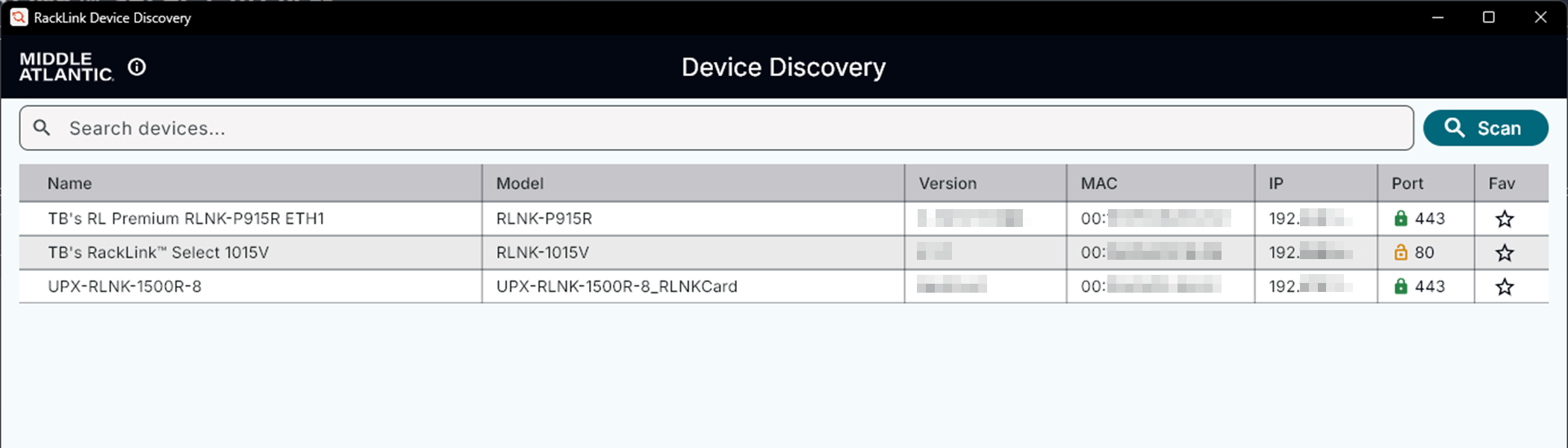
(Click or tap to expand image.)
-
- Click Scan to refresh any new or changed RackLink devices on your subnet.
-
Right click on a listed device's row and choose from the following options:
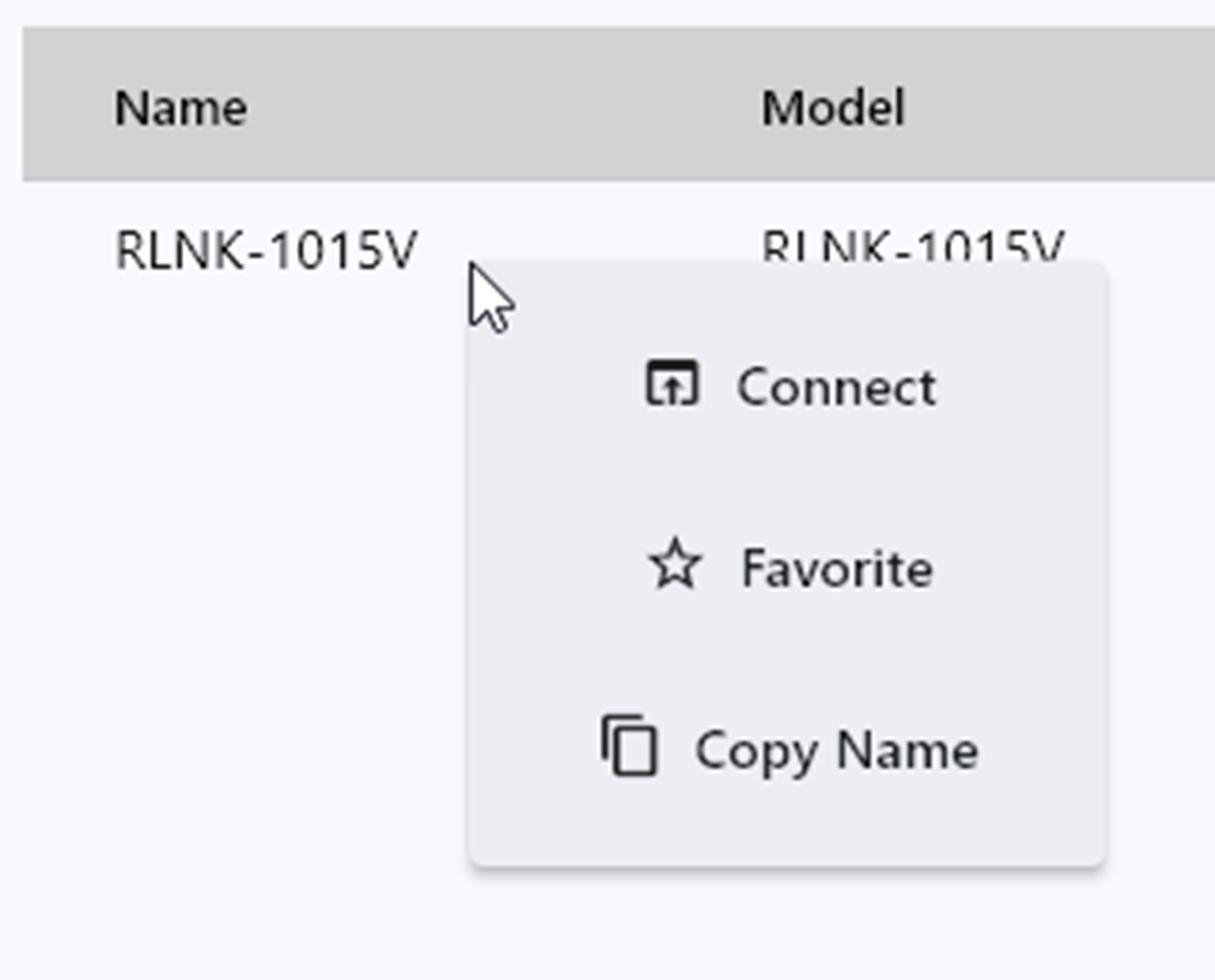
(Click or tap to expand image.)
-
Select Open in browser to access the corresponding web interface.

TIP
Double-click the row (except in the Favorites column) to quickly access the corresponding web interface.
-
Select Copy IP to copy the device's IP address value to your clipboard.
-
Select Copy MAC to copy the device's MAC address value to your clipboard.
-
Select Favorite to "pin" the device row to the top when multiple products are listed.
TIP
Click the Favorite star (without right-clicking) to add the device to your favorites.
-
-
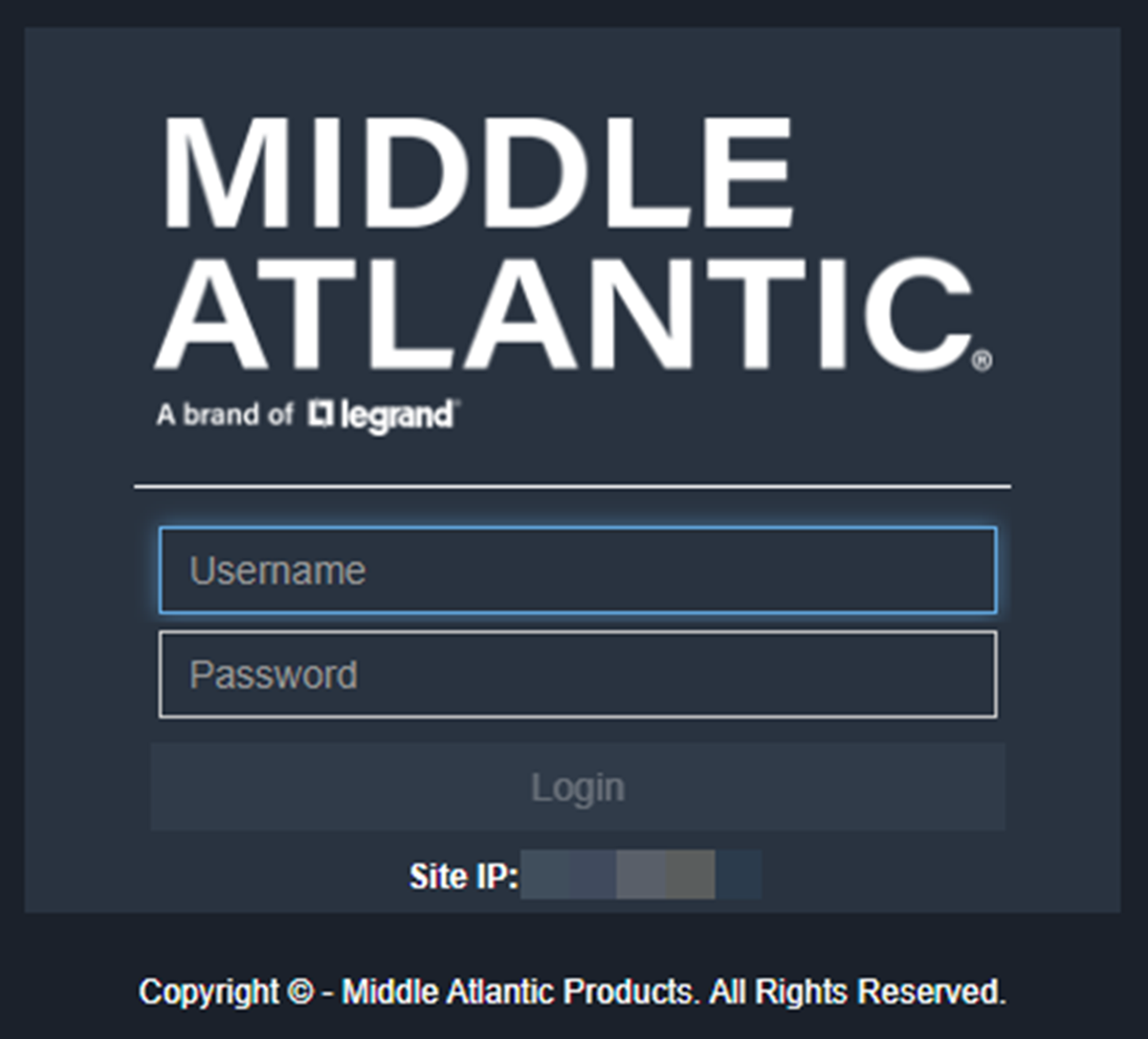
When accessing the web interface, the system prompts you for a username and password.
Related Topics