Installing the RackLink Device Discovery Tool Software on a Mac
Use the following steps to download and install the Device Discovery Tool software on a Mac.
-
If you haven’t done so already, download the Device Discovery Tool software installer onto your computer from the Power Downloads page at: https://www.legrandav.com/resources/power-downloads.
-
Run the Mac setup (.dmg) file.

TIP
You may have to use Finder to locate the file on your system.
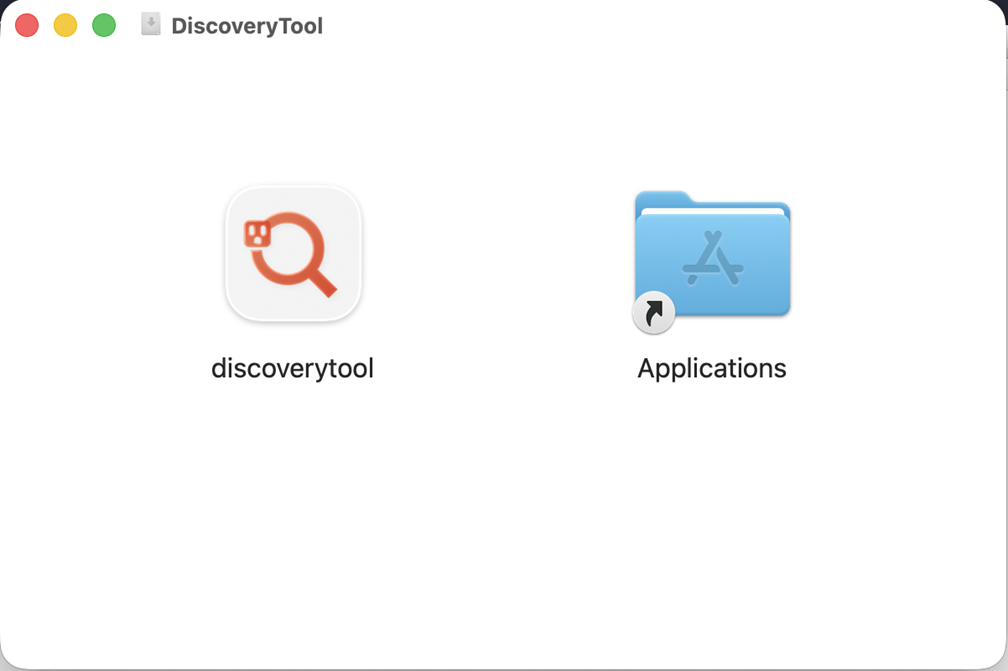
The Discovery Tool installer appears.
(Click or tap to expand image.)
-
Drag and drop the Discovery Tool icon onto the Applications folder.
-
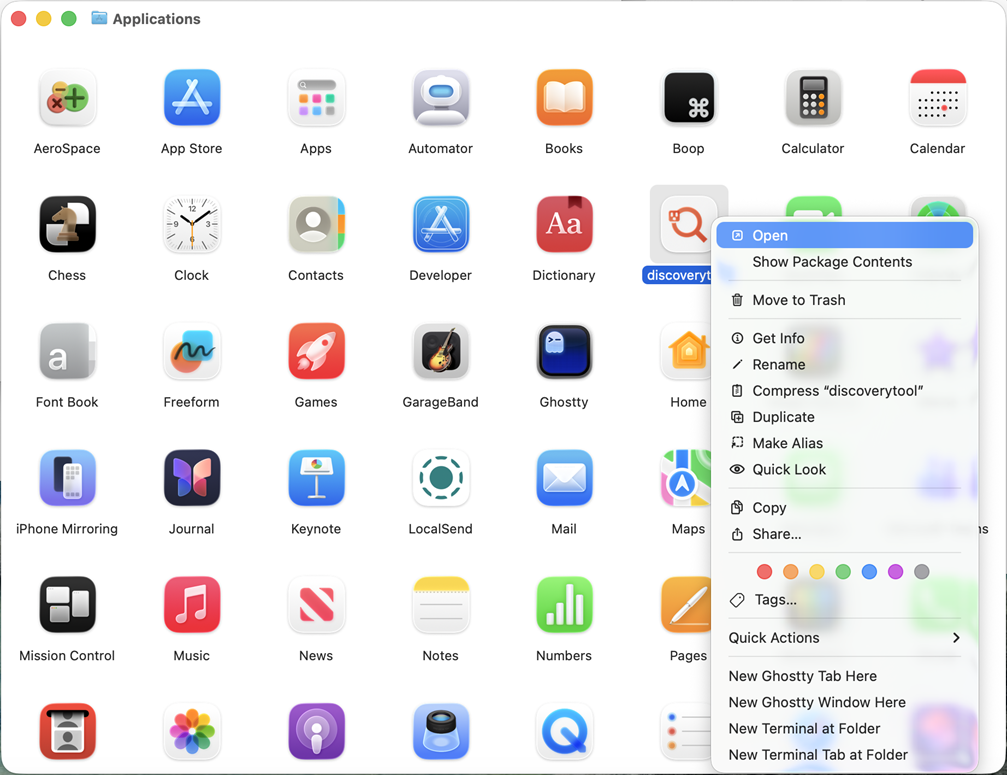
Double-click the Applications folder to open it.
The Applications folder content appears.
(Click or tap to expand image.)
-
Right-click the Discovery Tool icon and select Open.
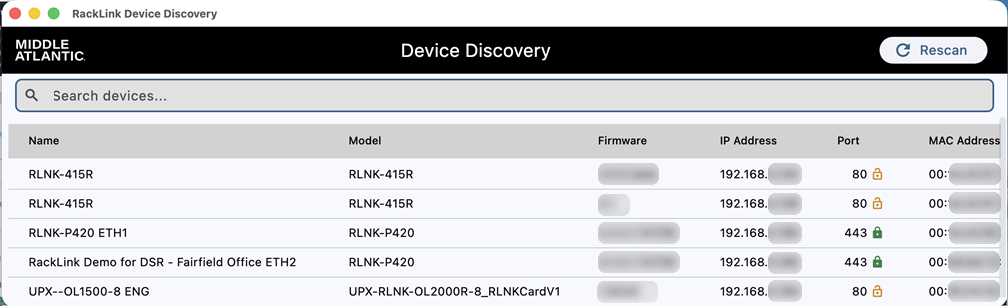
The main screen of the Device Discovery Tool appears.
(Click or tap to expand image.)
For more information, see Downloading and Using the RackLink Device Discovery Tool.
Related Topics